Stop Your PC From Slowing Down: The Specs That Matter for Lots of Tabs & Apps [2026 Guide]
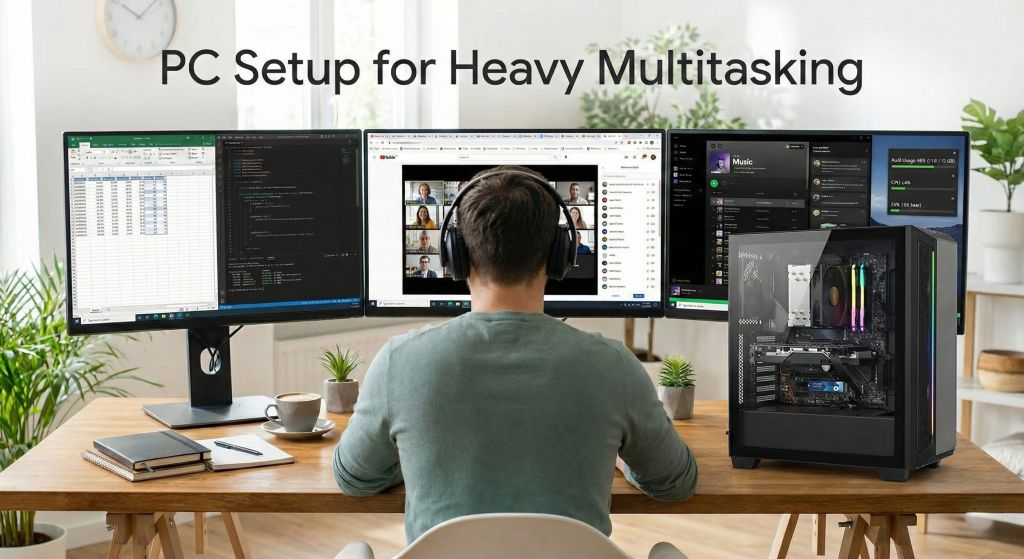
Does your PC grind to a halt when you have 30+ browser tabs open alongside video calls and other apps? You’re not imagining it. This frustrating slowdown is one of the most common PC complaints, and understanding why it happens—and which specs actually prevent it—can save you from buying the wrong computer.
In this guide, we’ll break down exactly which PC components affect multitasking performance, explain each one in plain terms, and give you practical thresholds so you know what “enough” actually looks like for your usage pattern.
What Matters Most? The Priority Order
Here’s the quick answer most people need: when your PC slows down with lots of tabs and apps, the culprit is almost always one of three things—in this order of importance:
How many things can stay open
How fast recovery is when RAM fills up
How fast it can juggle active tasks
RAM (Memory): The Main Cause of Slowdown
This is usually the primary culprit. Modern browsers can easily consume several gigabytes by themselves—especially with many tabs, extensions, and web apps open. Add a video call and some other applications, and you’ve got a recipe for slowdown.
What to Pay Attention To
- Capacity (GB) is the big one—more GB = more apps can stay open simultaneously
- Configuration (single vs dual channel) matters: 2 sticks (dual-channel) gives better performance than 1 stick, especially for integrated graphics
- Upgradability: some laptops have RAM soldered (not upgradeable)—this matters a lot for longevity
How Much RAM Is Enough?
| RAM | Status | What It Handles |
|---|---|---|
| 8 GB | Caution Zone | Light use only (handful of tabs + 1-2 apps). 20+ tabs or video calls often hit the wall |
| 16 GB | Recommended Baseline | Dozens of tabs + Office + chat apps + light photo editing. Sweet spot for most people |
| 32 GB | Heavy Users | 50-200 tabs, multiple heavy apps, development (Docker/VMs), heavy creative work |
| 64 GB+ | Pro Workflows | Large VMs, huge media projects, serious simulations. Not necessary just for “many tabs” |
- Aim for 16 GB (2×8 GB) or 32 GB (2×16 GB) rather than a single stick
- If buying a thin laptop with soldered RAM, don’t buy 8 GB if you care about multitasking
- When choosing between “slightly better CPU” vs “more RAM,” prefer more RAM first
Storage (SSD/HDD): Your Safety Net
Storage isn’t the first limiter—until you run out of RAM. Then the OS uses storage as temporary memory (“swap/pagefile”), and storage speed becomes critical. This is why an HDD can make a PC feel unusable under heavy multitasking.
What to Pay Attention To
- Type matters enormously:
- HDD (spinning drive): big slowdown risk—PC can feel unusable when swapping
- SATA SSD: much better than HDD
- NVMe SSD: fastest option, especially under heavy multitasking
- Free space: keep 15-20% free. Nearly full storage hurts caching and swap performance
How Much Storage Is Enough?
| Storage | Status | Notes |
|---|---|---|
| HDD (any size) | Avoid for Primary Drive | Swapping to HDD causes severe slowdowns. OK for secondary storage only |
| 256 GB SSD | Tight but Workable | Need to manage space carefully; running near-full hurts responsiveness |
| 512 GB SSD | Best Baseline | Comfortable floor for most people without constant space management |
| 1 TB+ SSD | Heavy Users | For many apps/games or lots of local media storage |
CPU (Processor): The Task Juggler
The CPU affects responsiveness while many things are active—tabs running scripts, video calls, background sync, antivirus scans, and more. However, for the specific problem of “slowdown with lots of tabs,” CPU is third in line after RAM and SSD.
What to Pay Attention To
- Modern CPU generation/architecture matters more than the brand label. “i7” can be fast or slow depending on the year
- Core/thread count helps when you’re doing multiple things at once
- Single-core performance affects “snappiness” (many everyday actions still hit one/few cores)
- Laptop power limits & cooling can silently throttle the CPU
How Much CPU Is Enough?
| CPU Spec | Status | What It Handles |
|---|---|---|
| 2 cores / 4 threads (or older 4-core chips) |
Caution Zone | Can feel laggy with many tabs + Teams/Zoom + Office |
| 4 cores / 8 threads (modern CPU) |
OK for Most | Fine for lots of tabs + office apps, if you have enough RAM |
| 6 cores / 12 threads | Smooth Experience | Noticeably better when piling on apps with heavy web pages |
| 8+ cores (or 8 performance-class cores) |
Power Users | Great for tons of tabs + creative apps + background tasks or frequent video meetings |
GPU (Graphics): Usually Secondary for Multitasking
For “lots of tabs + lots of apps,” GPU is usually not the bottleneck. Modern integrated graphics handle everyday multitasking just fine. GPU matters more if you:
- Use multiple high-resolution monitors (especially 4K)
- Do gaming, 3D work, or video editing
- Run heavy graphics workloads (CAD, ML, etc.)
Quick Guidelines
| GPU Type | Status | Best For |
|---|---|---|
| Integrated GPU (iGPU) Intel Iris Xe, AMD Radeon |
Fine for Multitasking | Everyday tasks, video playback, single monitor or basic multi-monitor setups |
| Dedicated GPU (dGPU) NVIDIA GeForce, AMD Radeon |
When Needed | Gaming, video editing, multiple high-res displays, creative/professional work |
Modern integrated GPUs also handle video decode well, reducing CPU load during streaming and video calls.
Cooling & Power: The Hidden Performance Limiter
A laptop can have a “fast” CPU on paper and still slow down because it heats up and throttles. This is especially common in ultra-thin laptops.
What to Pay Attention To
- Thermal design: thicker laptops or well-reviewed cooling = sustained performance
- Power limits: ultra-thin models may reduce performance under load to stay cool/quiet
- Performance modes: many laptops have “Balanced / Performance / Quiet” modes that affect CPU behavior
Practical Advice
- If you care about sustained multitasking, prioritize laptops known for good cooling over the thinnest possible model
- For desktops, decent airflow + a reasonable CPU cooler keeps performance consistent
- Check reviews for throttling behavior under sustained workloads
Network (Wi-Fi/Ethernet): Sometimes It’s Not Your PC
With many tabs and cloud apps, a weak connection can feel exactly like PC lag. Before blaming your hardware, consider your network.
What to Pay Attention To
- Wi-Fi standards: Wi-Fi 6 / 6E / 7 offer better stability and speed, especially in congested areas
- Router quality & signal matters as much as the laptop’s Wi-Fi chip
- Ethernet is always faster and more stable than Wi-Fi
Quick Guidelines
| Connection | Status |
|---|---|
| Wi-Fi 6 | Good for Most People |
| Wi-Fi 6E / 7 | Nice to Have (if router supports it) |
| Ethernet | Best Stability |
Recommended “No-Slowdown” Specs
Here are practical target specs based on your usage pattern:
Typical Multitasker
Many tabs + Office + chat apps + occasional video calls
- RAM: 16 GB (dual-channel preferred)
- Storage: 512 GB SSD (NVMe preferred)
- CPU: Modern 4C/8T minimum; 6C/12T feels smoother
- GPU: Integrated is fine
- Cooling: Avoid models known to throttle heavily
Heavy Multitasker
Tons of tabs + meetings + creative work / dev tools
- RAM: 32 GB
- Storage: 1 TB NVMe SSD (or 512 GB + second drive)
- CPU: 6C/12T minimum; 8C+ ideal
- GPU: Depends on creative/gaming needs
- Cooling: Strongly prioritize good sustained performance
- RAM: 8 GB (especially single-stick) if you do lots of tabs/apps
- Storage: HDD as primary drive (or SSD nearly full)
- CPU: 2-core or very old/low-power CPUs
- Thin laptops that throttle under sustained use
Frequently Asked Questions
Why does my PC slow down when I have many browser tabs open?
Each browser tab consumes RAM. Modern web pages with rich content, ads, and scripts can use 100-500+ MB each. When you exceed your available RAM, the system starts using much slower storage as temporary memory (swap/pagefile), causing everything to feel sluggish. This is why RAM is the #1 factor for tab-heavy users.
Is 8 GB of RAM enough in 2026?
For light users with just a handful of tabs and basic apps, 8 GB can work. However, if you regularly have 20+ tabs open, use video conferencing, or run multiple applications, 8 GB will likely cause slowdowns. 16 GB is the recommended baseline for anyone who multitasks.
Does an SSD really make that much difference?
Yes, especially when RAM fills up. An NVMe SSD can be 20-50x faster than an HDD for random reads/writes. When your system needs to swap data to storage, this speed difference is the difference between “slightly slower” and “completely unusable.”
Should I upgrade RAM or CPU first?
For multitasking slowdowns, upgrade RAM first in almost all cases. Unless your CPU is genuinely old (5+ years) or very low-end, adding more RAM will have a bigger impact on the “too many tabs” problem.
Why does my high-spec laptop still slow down?
Common causes include: (1) thermal throttling in thin designs, (2) running in power-saving mode, (3) insufficient RAM despite a fast CPU, (4) nearly-full storage, or (5) background processes consuming resources. Check your RAM usage in Task Manager (Windows) or Activity Monitor (Mac) first.
How can I check what’s causing my slowdown?
Open Task Manager (Windows: Ctrl+Shift+Esc) or Activity Monitor (Mac). Look at the Memory tab—if usage is at 90%+ or you see significant “compressed” or “swap” usage, RAM is your bottleneck. If Disk is at 100%, your storage is the issue (usually caused by RAM overflow or an old HDD).
The Bottom Line
When your PC slows down with lots of tabs and apps, the cause is usually predictable—and fixable with the right specs:
- RAM is #1: 16 GB is the 2026 baseline; 32 GB for power users
- SSD is mandatory: Never use an HDD as your primary drive; 512 GB minimum
- CPU matters third: Modern 4-6 core processors are sufficient for most multitasking
- GPU is secondary: Integrated graphics are fine unless you game or edit video
- Don’t overlook cooling: A throttled CPU performs like a slower CPU
If you’re buying new, prioritize RAM and SSD quality over flashy CPU specs. If you’re upgrading, check your current RAM usage first—that’s almost always where the problem lives.