Memory vs Storage Explained: Understanding RAM, ROM, SSD & HDD [2026 Guide]
“Why is my computer slow even though I have 1TB of storage?” If you’ve ever asked this question, you’re confusing two very different things: memory and storage. It’s one of the most common misconceptions in computing, and understanding the difference will help you make smarter decisions when buying or upgrading a PC.
In this comprehensive guide, we’ll explain the difference between memory (RAM) and storage (SSD/HDD), clear up the RAM vs ROM confusion, and help you figure out exactly how much of each you need based on your usage.
Memory vs Storage: The Simple Explanation
Let’s start with a simple analogy that makes this crystal clear:
📚 Think of Your Computer Like an Office Desk
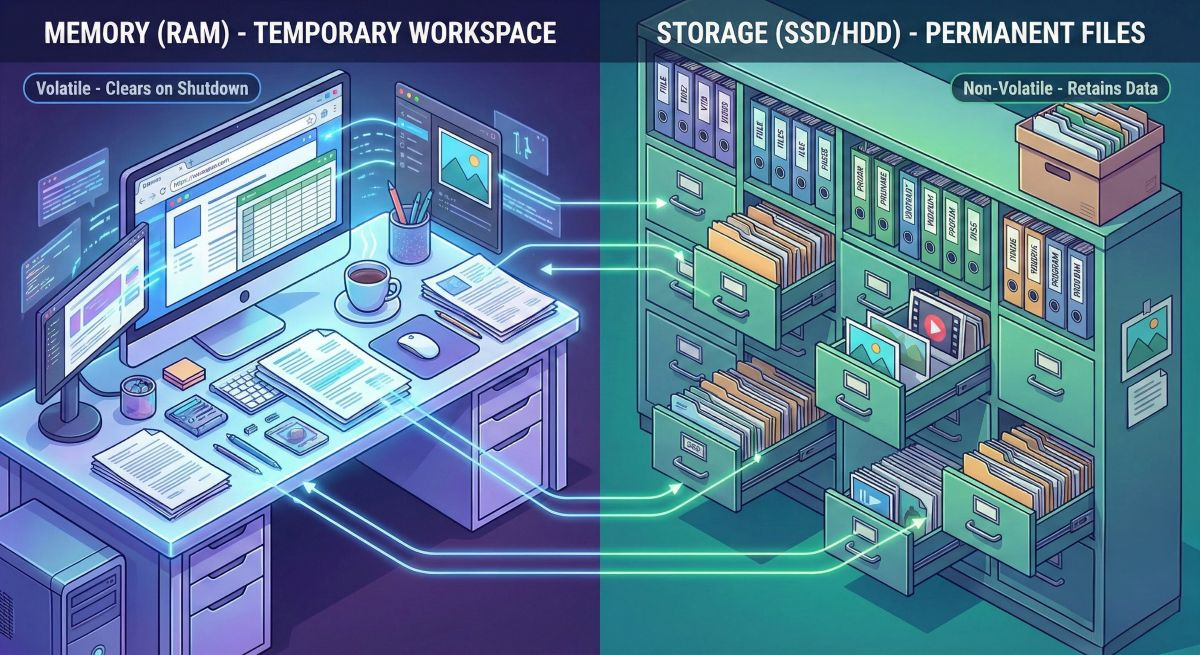
Memory (RAM) = Your desk surface where you actively work
The bigger your desk, the more documents you can spread out and work on simultaneously. But when you leave for the day (turn off the PC), the desk is cleared.
Storage (SSD/HDD) = Your filing cabinet where you keep everything
This is where all your files, programs, and documents are permanently saved. Even when you leave, everything stays in the cabinet.
⚡ Memory (RAM)
Temporary, Fast Workspace
RAM (Random Access Memory) is your computer’s short-term memory. It temporarily holds the data your computer is actively using right now. When you open an application, it loads from storage into RAM for quick access. When you shut down, RAM is cleared.
💾 Storage (SSD/HDD)
Permanent File Storage
Storage is your computer’s long-term memory. It permanently holds your operating system, applications, documents, photos, videos, and all your files. Data stays here even when the power is off.
Why This Matters for Performance
- Not enough RAM? → Your computer slows down because it can’t keep enough data ready for quick access
- Not enough storage? → You run out of space to save files, but it doesn’t directly affect speed
- Slow storage (HDD vs SSD)? → Everything takes longer to load, including boot time and app launches
Key Differences Between Memory and Storage
| Aspect | Memory (RAM) | Storage (SSD/HDD) |
|---|---|---|
| Purpose | Temporary data for active tasks | Permanent file and program storage |
| Data Persistence | Cleared when powered off (volatile) | Retained when powered off (non-volatile) |
| Speed | Extremely fast (nanoseconds) | Fast (SSD) to slow (HDD) |
| Typical Capacity | 8GB – 64GB | 256GB – 4TB+ |
| Cost per GB | Expensive (~$2-4/GB) | Cheaper (~$0.05-0.10/GB) |
| Impact on Performance | Affects multitasking and app responsiveness | Affects load times and file transfers |
| User Upgradeable? | Sometimes (desktops: yes, many laptops: no) | Usually yes (varies by laptop) |
RAM vs ROM: Clearing Up the Confusion
Another common source of confusion is RAM vs ROM. While they sound similar, they serve completely different purposes:
💫 RAM (Random Access Memory)
Read-Write, Volatile
RAM is your computer’s working memory. Data can be read from and written to RAM constantly. It’s extremely fast but loses all data when power is cut. This is where your open applications and active files live.
🔒 ROM (Read-Only Memory)
Read-Only, Permanent
ROM contains permanent instructions that don’t change, like your computer’s BIOS/UEFI firmware. It’s built into the hardware and retains data without power. You can’t easily modify ROM contents.
| Aspect | RAM | ROM |
|---|---|---|
| Full Name | Random Access Memory | Read-Only Memory |
| Read/Write | Both read and write | Read only (typically) |
| Volatility | Volatile (loses data without power) | Non-volatile (retains data) |
| Speed | Very fast | Slower than RAM |
| Capacity | 8GB – 128GB in modern PCs | Usually a few MB |
| Use Case | Running applications, active data | BIOS/UEFI, firmware, boot instructions |
| User Accessible? | Yes, can be upgraded | No, built into motherboard |
How Much RAM Do You Need? [2026 Guide]
RAM requirements have increased significantly over the years. Here’s what you need based on your usage:
| RAM Amount | Best For | Recommendation |
|---|---|---|
| 4GB | Basic browsing, Chromebooks | ❌ Not recommended for Windows/Mac |
| 8GB | Light web browsing, documents, email | ⚠️ Minimum viable, will feel limited |
| 16GB | Most users, gaming, productivity, photo editing | ✅ Sweet spot for most people |
| 32GB | Video editing, development, VMs, heavy multitasking | ✅ Recommended for power users |
| 64GB+ | Professional 4K/8K video, 3D rendering, large datasets | ✅ Workstation-class |
RAM Requirements by Use Case
- 📧 Email & Web Browsing: 8GB minimum, 16GB recommended (browsers use a lot of RAM!)
- 📊 Office Work (Excel, Word, PowerPoint): 16GB recommended
- 🎮 Gaming: 16GB minimum, 32GB for future-proofing
- 📸 Photo Editing (Photoshop, Lightroom): 16GB minimum, 32GB for large files
- 🎬 Video Editing (Premiere, DaVinci): 32GB minimum, 64GB for 4K+ footage
- 💻 Software Development: 16GB minimum, 32GB if using VMs or Docker
- 🤖 AI/Machine Learning: 32GB+ (GPU VRAM matters more)
SSD vs HDD: Storage Types Compared
Not all storage is created equal. The type of storage dramatically affects your computer’s speed:
| Storage Type | Speed | Price | Best For |
|---|---|---|---|
| NVMe SSD (PCIe 4.0/5.0) | Up to 7,000+ MB/s read | $$ | Primary drive, gaming, video editing |
| NVMe SSD (PCIe 3.0) | Up to 3,500 MB/s read | $$ | Primary drive, great value option |
| SATA SSD | ~550 MB/s read | $ | Budget builds, secondary storage, older PCs |
| HDD (Hard Disk Drive) | ~100-200 MB/s read | $ | Bulk storage, backups, media archives |
| eMMC | ~400 MB/s read | $ | Budget laptops, Chromebooks (not recommended) |
How Much Storage Do You Need?
| Storage Amount | Suitable For | Reality Check |
|---|---|---|
| 128GB | Chromebooks, cloud-focused use | ❌ Too small for most Windows/Mac users |
| 256GB | Light users, mostly cloud-based work | ⚠️ Tight – fills up quickly |
| 512GB | Average users, some games/apps | ✅ Minimum recommended in 2026 |
| 1TB | Gamers, content creators, most users | ✅ Sweet spot for most people |
| 2TB+ | Large game libraries, video editors, developers | ✅ Comfortable headroom |
Common Misconceptions Debunked
❌ “I have 1TB of storage, so my computer should be fast”
Reality: Storage capacity doesn’t affect speed. A computer with 256GB SSD will be faster than one with 2TB HDD. What matters is the type of storage (SSD vs HDD) and how much RAM you have.
❌ “8GB RAM is enough because I don’t game”
Reality: Modern web browsers alone can use 4-8GB+ of RAM with multiple tabs open. Windows/macOS themselves use 2-4GB. With 8GB, you’re constantly running close to capacity, causing slowdowns. 16GB is the new baseline.
❌ “More RAM is always better”
Reality: RAM only helps if you actually use it. If you’re a light user with 32GB, you’re paying for RAM that sits idle. However, unused RAM does get used for caching, so it’s not completely wasted—just diminishing returns.
❌ “I can just upgrade RAM later”
Reality: Many modern laptops (especially thin models) have soldered RAM that cannot be upgraded. Always check before buying. Desktops are generally upgradeable.
❌ “SSD speed doesn’t matter after a certain point”
Reality: For everyday use, the difference between a fast and ultra-fast SSD is minimal. However, for video editing, game loading, and large file transfers, faster NVMe drives make a noticeable difference.
How Memory and Storage Work Together
Understanding the relationship between RAM and storage helps explain why both matter:
🔄 The Data Flow
- You click an app icon → Your computer reads the program from Storage (SSD/HDD)
- The app loads into RAM → Data moves from slow storage to fast Memory (RAM)
- You work with the app → All active data is processed in RAM for quick access
- You save your work → Data writes back to Storage for permanent keeping
- You close the app → RAM is freed up for other tasks
What Happens When RAM Runs Out?
When your RAM fills up, your computer uses a portion of your storage as “virtual memory” (swap space). Since storage is much slower than RAM, this causes significant slowdowns—the dreaded “thrashing” where your computer becomes unresponsive. This is why having enough RAM is crucial.
- Slow boot time? → Likely a storage issue (HDD or slow SSD)
- Apps take forever to open? → Storage issue or insufficient RAM
- Computer freezes when multitasking? → Likely insufficient RAM
- “Your disk is full” message? → Storage issue, not RAM
- Everything slow after fresh restart? → Probably slow storage (HDD)
Frequently Asked Questions
Can I use storage as RAM?
Your operating system does this automatically through “virtual memory” or “swap,” but it’s much slower than real RAM (100x+ slower). It’s a fallback, not a substitute. Always have enough physical RAM for your needs.
Is DDR4 or DDR5 RAM better?
DDR5 is newer and faster, but for most users, the real-world difference is minimal (5-10%). DDR5 systems cost more, and you need a compatible motherboard. DDR4 remains excellent value. The generation matters less than having enough RAM.
Does RAM speed matter?
For most users, RAM capacity matters more than speed. However, for gaming (especially with AMD Ryzen CPUs) and content creation, faster RAM (3200MHz+) can provide 5-15% better performance. Don’t overpay for extreme speeds unless you have specific needs.
Should I get one 16GB stick or two 8GB sticks?
Two sticks (dual-channel) is better. Running RAM in dual-channel mode effectively doubles memory bandwidth, improving performance by 10-20% in memory-intensive tasks. Always prefer 2x8GB over 1x16GB when possible.
How long do SSDs last?
Modern SSDs are extremely reliable. Most consumer SSDs are rated for 300-600 TBW (terabytes written). For typical use, this means 10+ years of lifespan. SSDs are now more reliable than HDDs for most use cases.
Is 512GB storage enough in 2026?
It depends. For cloud-focused users who stream games and store files online, 512GB is workable. For gamers (modern games are 50-100GB+), content creators, or anyone who stores media locally, 1TB is the practical minimum.
What’s the difference between DRAM and SRAM?
DRAM (Dynamic RAM) is what we call “RAM” in PCs—it needs constant refreshing and is used for main memory. SRAM (Static RAM) is faster and used for CPU cache. You don’t buy SRAM separately; it’s built into processors.
🎯 Key Takeaways
Understanding the difference between memory and storage is essential for making smart PC buying decisions:
- Memory (RAM) = Fast, temporary workspace → Affects multitasking and responsiveness
- Storage (SSD/HDD) = Permanent file storage → Affects load times and file capacity
- ROM = Firmware storage → Not something you upgrade or worry about
- 2026 Baseline: 16GB RAM + 512GB SSD minimum for a good experience
- Power users: 32GB RAM + 1TB NVMe SSD recommended
Remember: When a computer feels slow, it’s usually insufficient RAM or an old HDD—not lack of storage space. Prioritize RAM and SSD type over raw storage capacity!